Integrate BigBlueButton with Chamilo LMS: Complete Setup Guide
Introduction
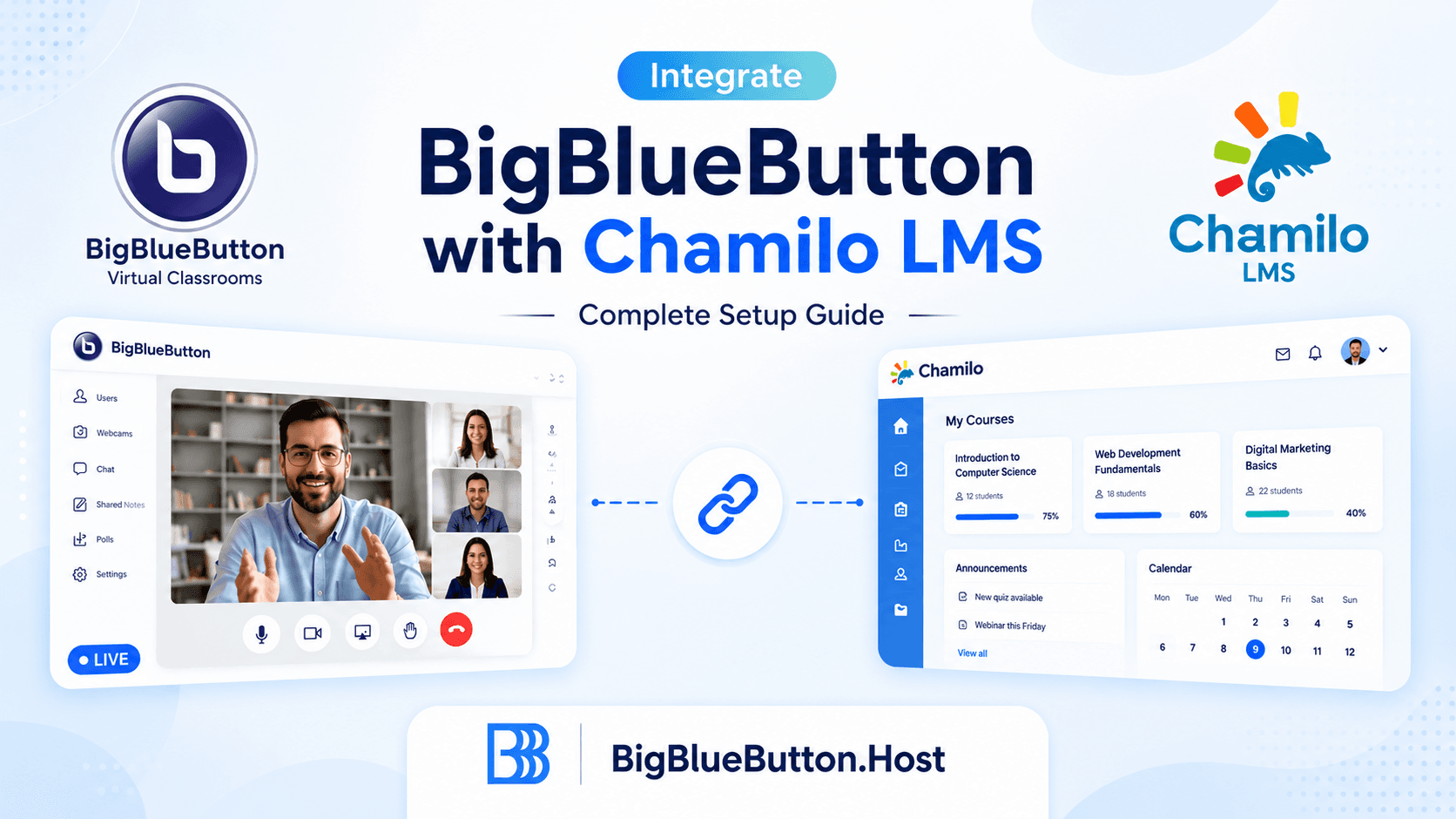
Chamilo integrates with BigBlueButton (BBB) through the BigBlueButton plugin, allowing live classes directly inside each course. Once configured, teachers can launch sessions, learners can join from course navigation, and recordings can be managed according to course policy.
What to Expect from the Chamilo + BBB Integration
With proper setup, you get:
- Live virtual classroom sessions from inside Chamilo courses
- Role-aware behavior (teachers/coaches start sessions, learners join)
- Optional recording support at course level
- A familiar workflow for institutions already using Chamilo tools
Prerequisites
Before configuration, ensure:
- Chamilo admin access
- BigBlueButton plugin availability in your Chamilo deployment
- Valid BBB endpoint credentials already prepared (same credential model as your other BBB integrations)
- HTTPS-enabled BBB endpoint and working network path between Chamilo and BBB
If you already have experience of Moodle/Canvas/OpenedX integration with BBB in your environment, use the same credential governance standards here.
Step 1: Enable the BigBlueButton Plugin in Chamilo
In Chamilo administration:
- Open Settings
- Go to Plugins
- Enable the BigBlueButton plugin
- Save changes
After enabling, reload the admin page so the plugin-related extra settings are visible.
Step 2: Configure Plugin Connection Settings
In the BigBlueButton plugin settings area:
- Enter your BBB server connection values
- Save settings
- Re-open the page to confirm values persist
Configuration sanity checks:
- BBB endpoint is reachable from Chamilo server
- SSL certificate is valid
- No proxy/firewall blocks on required routes
Step 3: Verify Integration in a Course
Run a real course-level test:
- Open a course in teacher/coordinator role
- Click Video-conference tool
- Start a meeting as teacher
- Join from a learner test account
- Confirm audio/video and moderator permissions
Expected behavior:
- Teachers/coaches can start rooms
- Learners join only after an authorized teacher starts the session
Step 4: Enable and Manage Recordings (Optional)
If your program needs recorded sessions:
- Open Course settings
- Enable video-conference recording option
- Save course settings
Before enabling recordings globally, define:
- Storage retention policy
- Access permissions
- Compliance/privacy policy by department or course type
Role and Access Behavior in Chamilo
By default integration behavior usually aligns with:
- Teacher/coach: can launch and moderate session
- Learner: can participate once session is active
If learners click the tool before a room is started, they may be redirected without entering a meeting. This is normal behavior in many Chamilo setups.
Troubleshooting Common Issues
If the video-conference tool appears but meetings do not launch:
- Recheck plugin enabled state after updates
- Reload admin settings page and confirm values were saved
- Validate endpoint reachability and SSL chain
- Confirm role permissions in the target course
- Test in a clean browser profile and separate teacher/learner accounts
If recordings do not appear:
- Verify recording is enabled in course settings
- Confirm BBB recording pipeline health
- Check server storage and processing queue status
Stability and Performance Recommendations
For production usage at scale:
- Keep Chamilo and plugin versions current
- Use staging before applying config changes in production
- Monitor meeting concurrency and recording load
- Set clear retention limits for recording storage
If your team wants lower operational overhead, managed BigBlueButton hosting can simplify upgrades, monitoring, and scaling while keeping the same Chamilo integration workflow.
FAQ
Can Chamilo learners start a BBB room?
In most setups, no. Teachers/coaches typically start rooms; learners join active sessions.
Why does clicking video-conference just reload the course page?
This often happens when no teacher-started session is active yet.
Should recordings be enabled for all courses?
Not always. Enable based on compliance, pedagogy, and storage capacity.
Is managed BBB infrastructure compatible with Chamilo plugin integration?
Yes. Chamilo plugin integration works with managed or self-hosted BBB as long as endpoint configuration is valid.
Conclusion
Chamilo and BigBlueButton integration is straightforward when you focus on plugin enablement, correct connection settings, role-based testing, and course-level recording policy.
About BigBlueButton Host
Thanks for reading this post on Integrate BigBlueButton with Chamilo LMS: Complete Setup Guide. At BigBlueButton Host, we help teams, schools, and training organizations run dependable BigBlueButton infrastructure with practical guidance, clear deployment paths, and real-world operational support.
Related Articles
Deploy BigBlueButton Today
Get your own fully managed BigBlueButton server up and running in minutes. No technical expertise required.